
Mastering Data and Graph Exports in Mervis SCADA
At Energocentrum Plus, we understand that interacting with your data goes far beyond viewing it on a screen. Mervis SCADA allows you to export the data you are viewing in your graphs so you can download raw numbers for analysis in Excel, save visual charts as images for reports, or generate electronic records for compliance purposes.
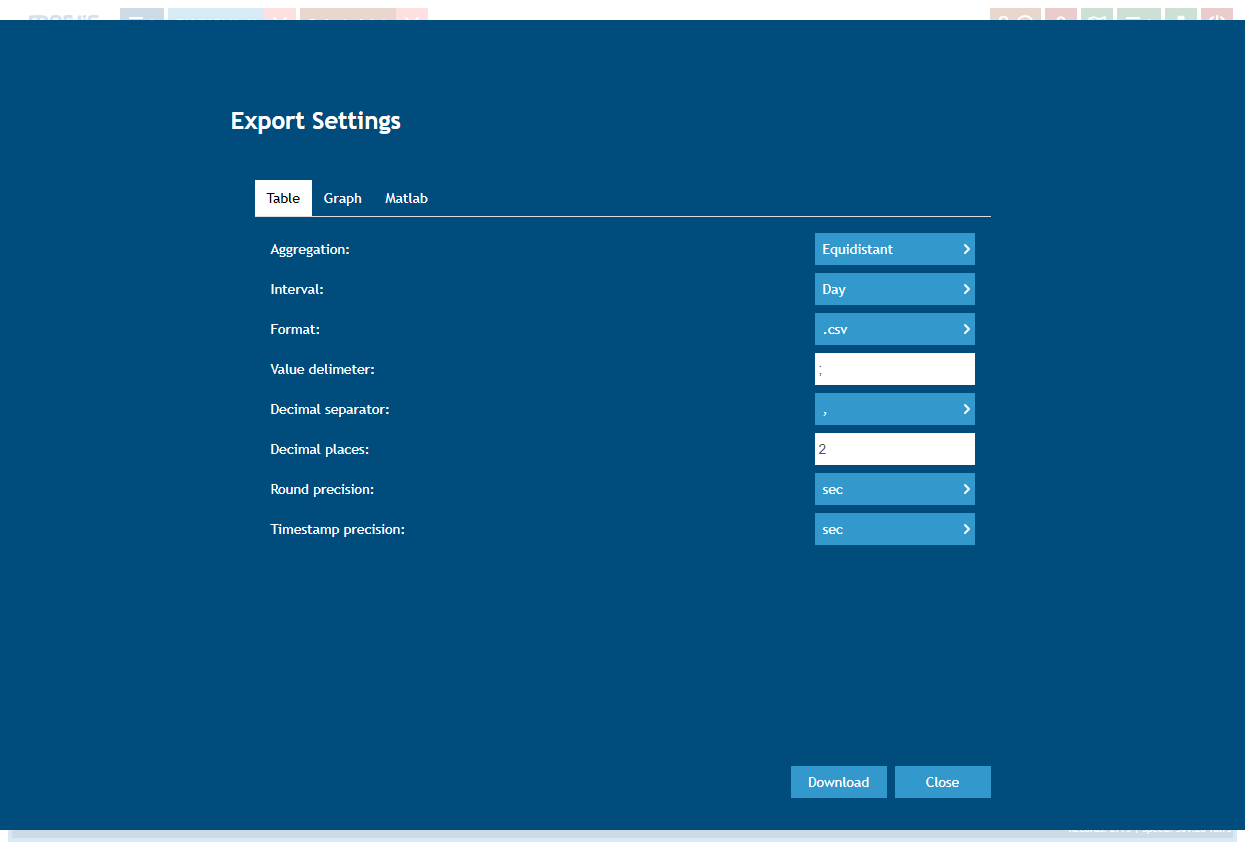
Two Ways to Export Your Data
Accessible via the Export button located in the Graph view menu, Mervis provides dedicated tabs to extract exactly what you need:
1. Table Exports (Spreadsheets and Compliance)
Use the Table tab to download your data as a spreadsheet file (.xlsx, .csv). For regulated environments requiring printable or electronic copies of historical data, this function generates the necessary immutable CSV or Excel records.

Key customization options include:
- Aggregation: Determines if you get raw or calculated data. Choose Aligned for exact raw database records, Equidistant for calculated data on a fixed grid, or BI for formats optimized for third-party analytics software.
- Format: Export as standard Microsoft Excel files (.xlsx) or plain text Comma Separated Values (.csv). Note that if you are exporting data to serve as a formatting template for manually uploading or backfilling missing data after a PLC connection drop, you must select the .csv format.
- Precision & Regional Settings: Customize value delimiters and decimal separators to match specific regional settings, and adjust timestamp precision down to the exact second.
2. Graph Exports (Images)
Use the Graph tab to save a picture of the chart exactly as it looks on your screen. This generates a PNG file that is perfect for inserting into emails, presentations, or visual compliance reports.
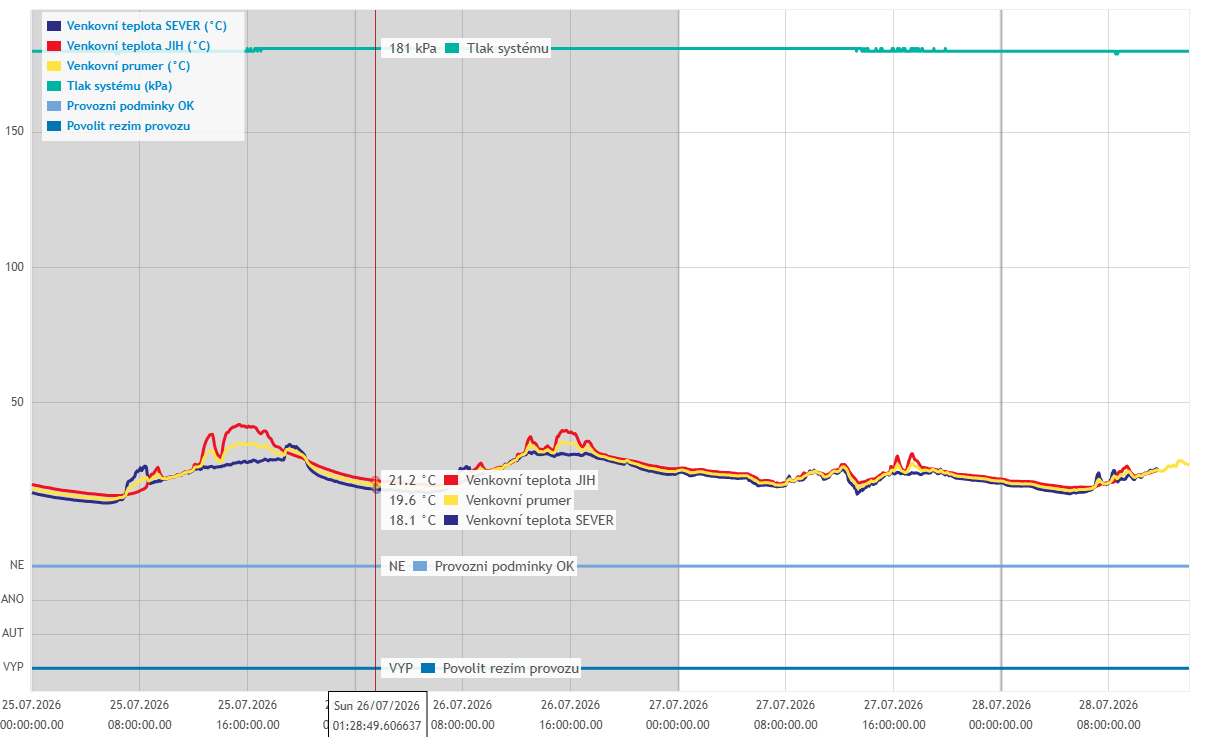
You can specify the exact pixel dimensions for the width and height, or leave them blank to default to the current size of your browser window.
For a complete, step-by-step technical guide on utilizing these parameters, check out the Mervis Knowledge Base guide on Exporting Data.